 Keet Support
Back Up Your Profile
Create an encrypted backup file of your Keet profile, protected by a password you choose, so you can restore your profile later.
An encrypted backup file is an extra way to protect your Keet profile. It works alongside your 24-word recovery phrase: you create the file with a password you choose and store it safely. If you ever lose your device, you can use it to recover your profile.
You are responsible for keeping both the password and the backup file safe. Keet cannot recover them for you.
How to create an encrypted backup file
Create a backup file
The steps are the same on mobile and desktop. You can create a backup anytime from 'Profile and Settings' / 'Settings' / 'Privacy and Security' / 'Recovery Phrase', and during onboarding when you choose manual setup.
- Choose 'Create backup file' to add a second layer of protection.
- Enter a password for your backup file, type it again under 'Confirm password'.
- Tick 'I understand I must keep my password and backup file to recover my account'.
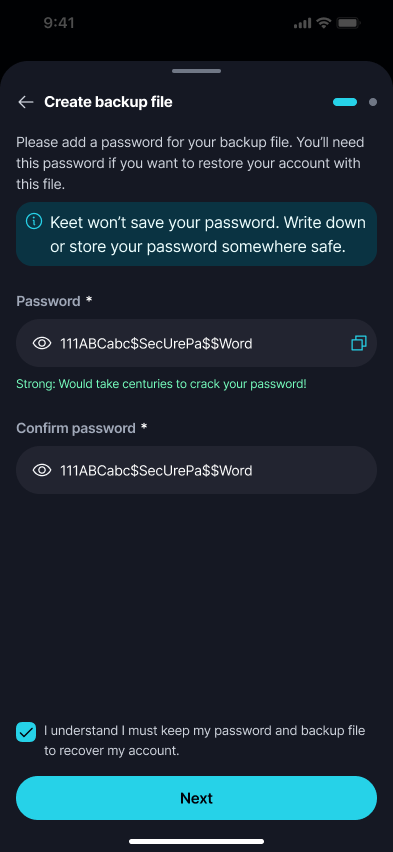
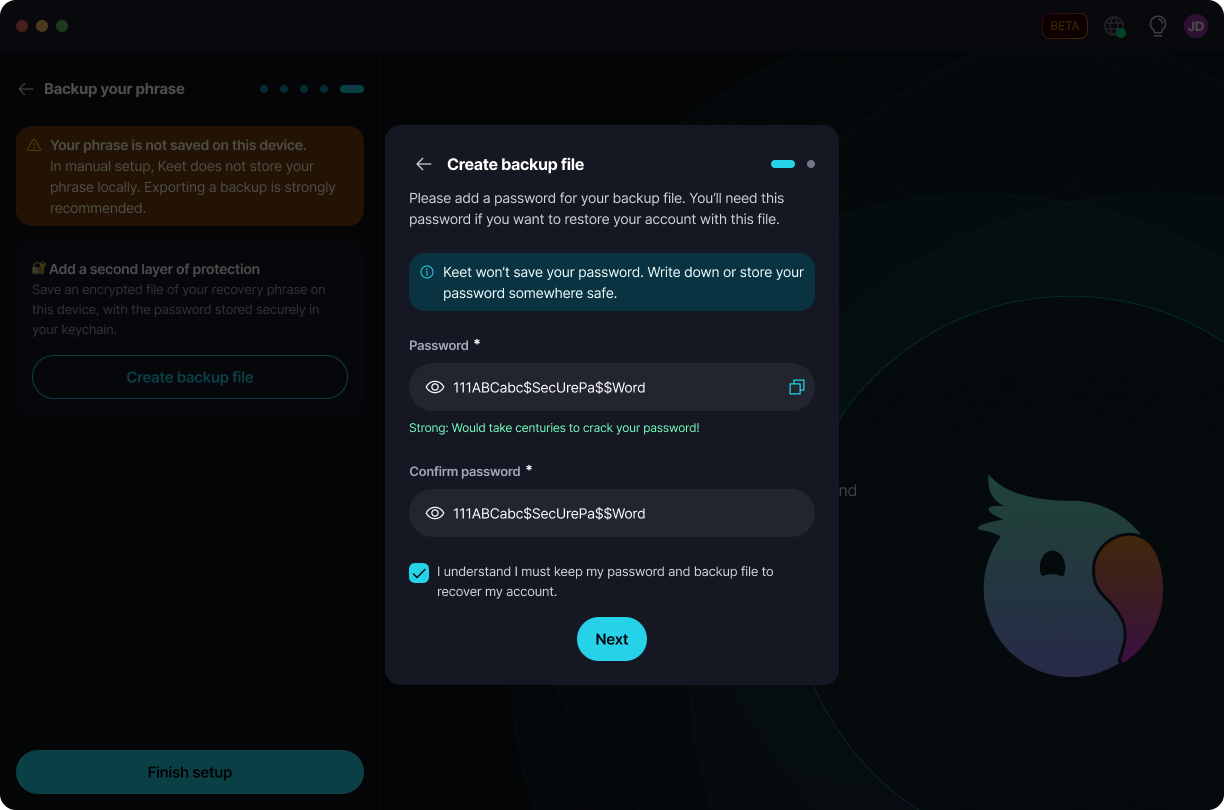
Keet does not generate the password, save it, or retrieve it later, and there is no in-app keychain or password-manager flow. Write the password down or store it somewhere safe - if you lose it, you will not be able to restore your profile from this file. If your operating system or browser offers to save the password, that is incidental and not required for the backup to work.
Export the backup file
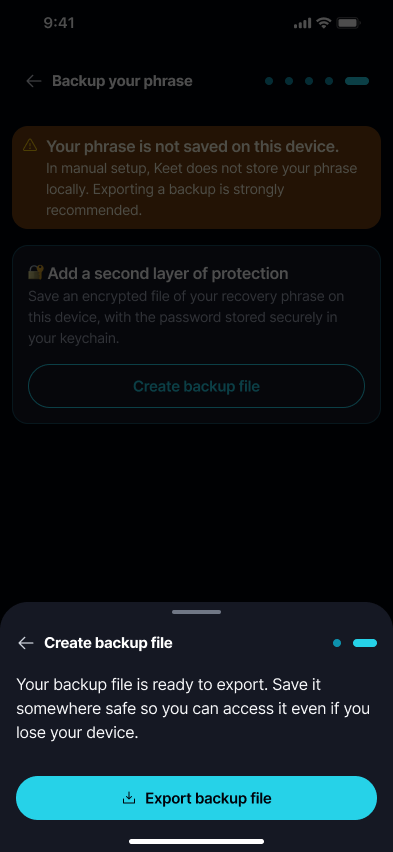
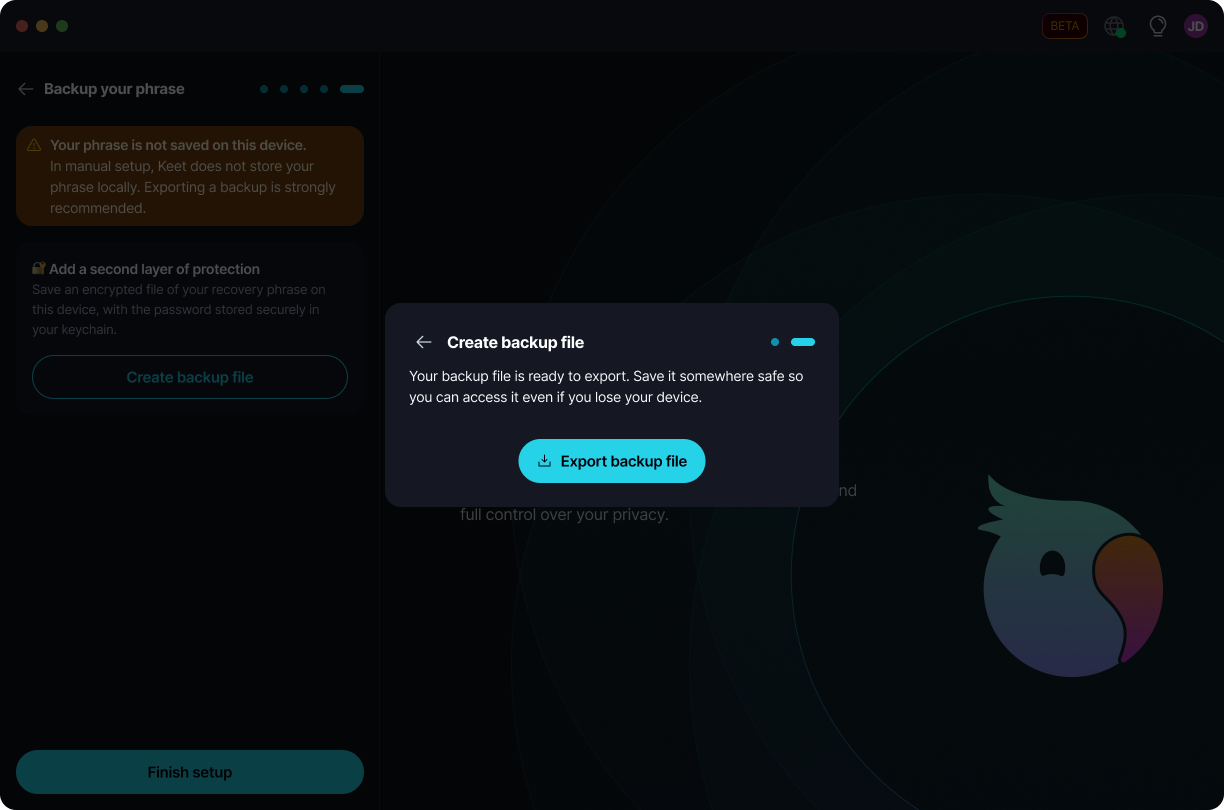
Select 'Export backup file'
After you submit a valid password, Keet creates the encrypted backup and your file is ready to export. Select 'Export backup file'.
Choose where to store the file
Keet opens your device's native export/share dialog so you can save or send the file. Choose where to store it.
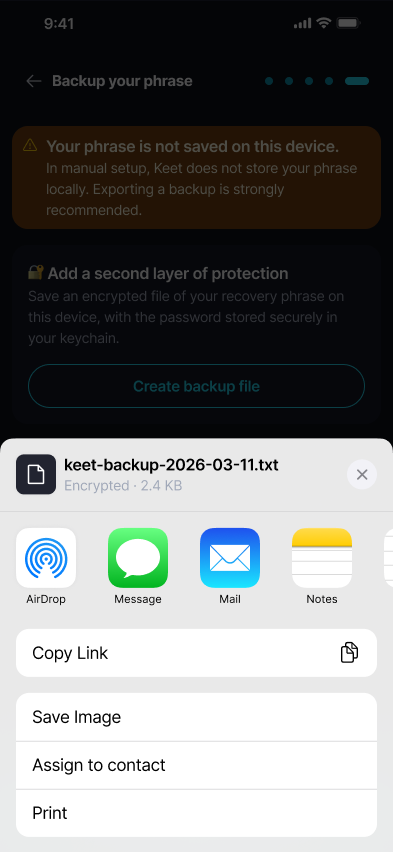
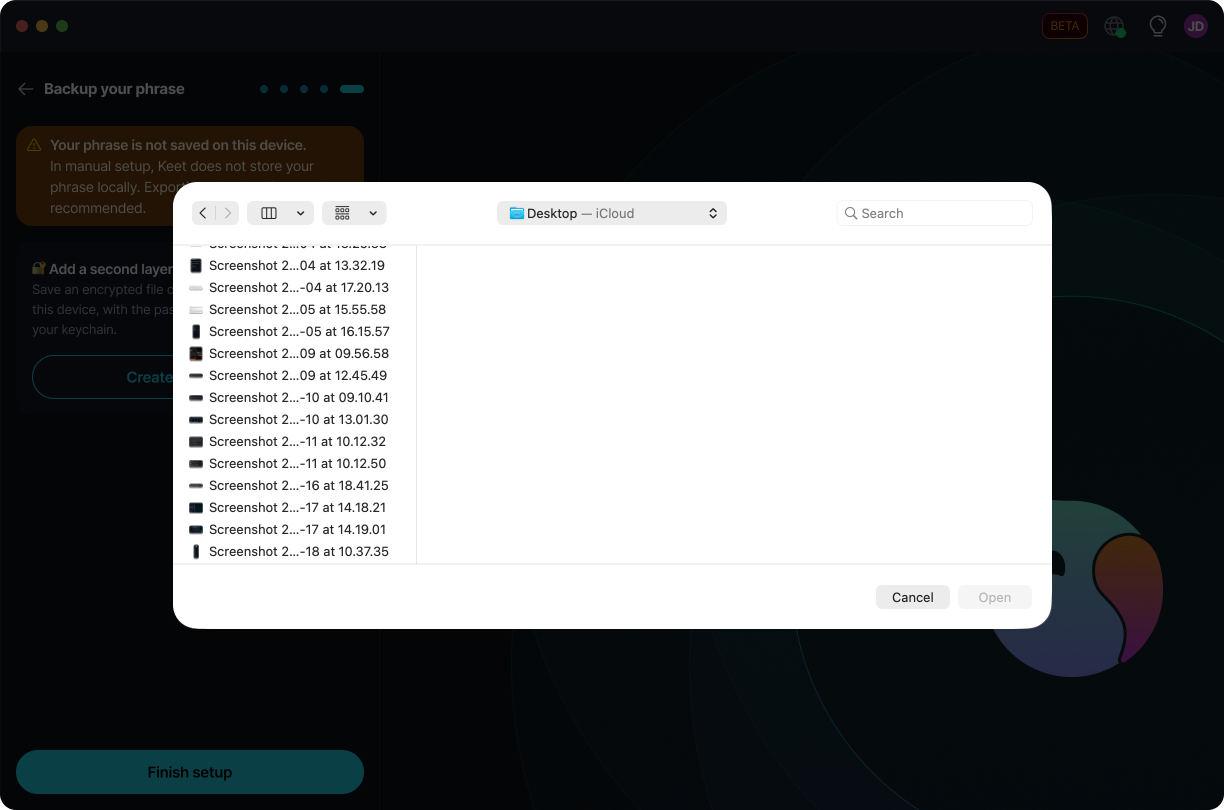
Confirm the export
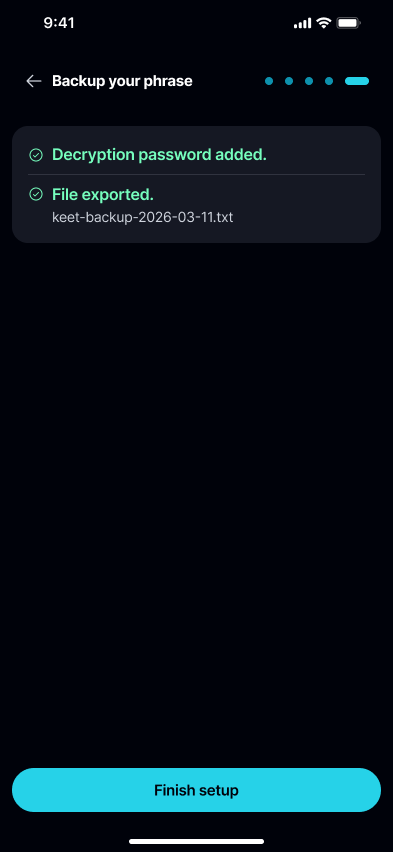
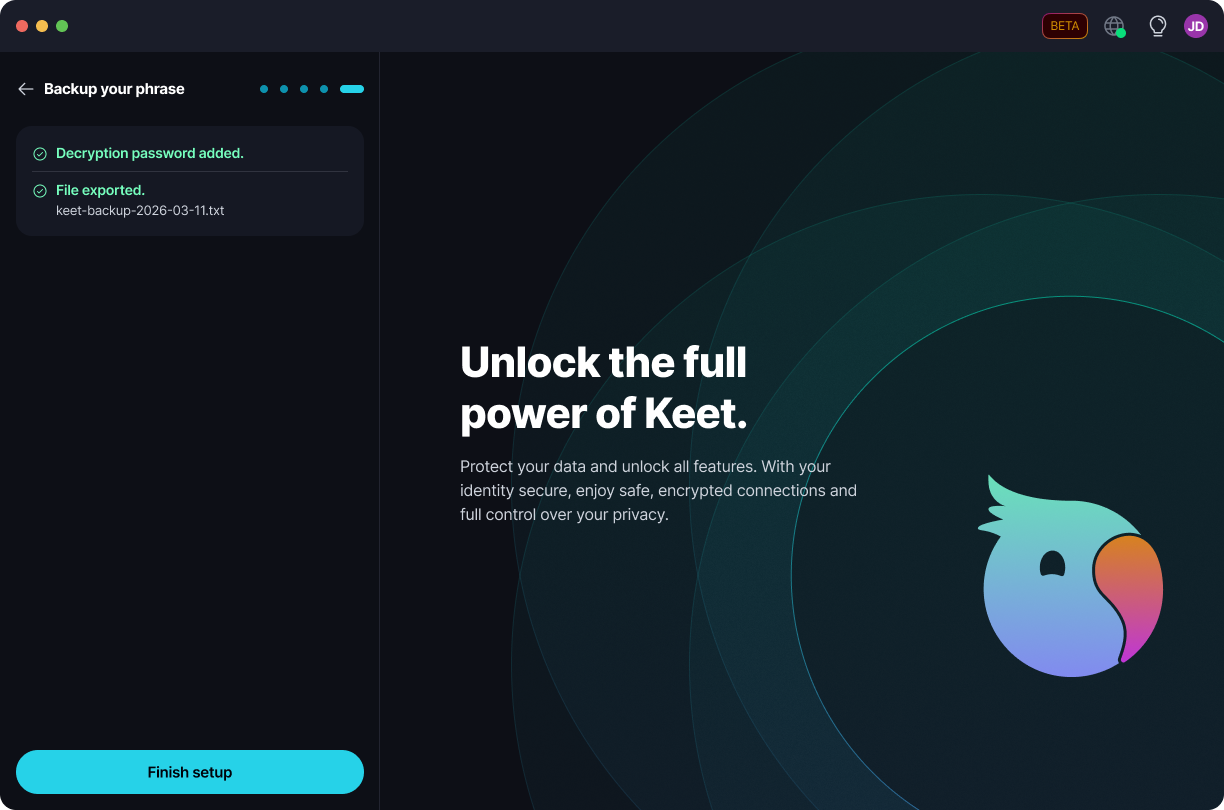
When the export succeeds, Keet confirms that the decryption password was added and the file was exported, showing the saved file name. If you cancel the export or it fails, no success message is shown - just start the export again.
In quick setup, creating a backup is optional during onboarding - you can do it later from Recovery Phrase Settings, where the phrase is also available.
In manual setup, create the backup during onboarding, because the recovery phrase is not shown again afterwards.
When you lose access to your device, see Recover a Profile for how to restore it from your recovery phrase or backup file.